
e-TTN by AP Group
a managed digital service for creating, exchanging, and signing waybills using a digital signature
Abstract of the functionality
Why choose e-TTN by AP Group?
⦿ Quick start: log in via corporate email or authorization via the Diya app
⦿ Intuitive dashboard
⦿ Transparent signing process
⦿ The system guides you through the steps and automatically populates some data
⦿ Profile and companies under control: contact verification, company data, updates from EDO
About product
Official operator of electronic document management in the e-TTN system
The e-TTN by AP Group operates as an electronic document management platform and is connected to the state e-TTN system. Currently, the platform of Agroprosperis LLC is listed on the official government website among the EDM operators with the status “decision on authorization of the EDM platform has been made.”
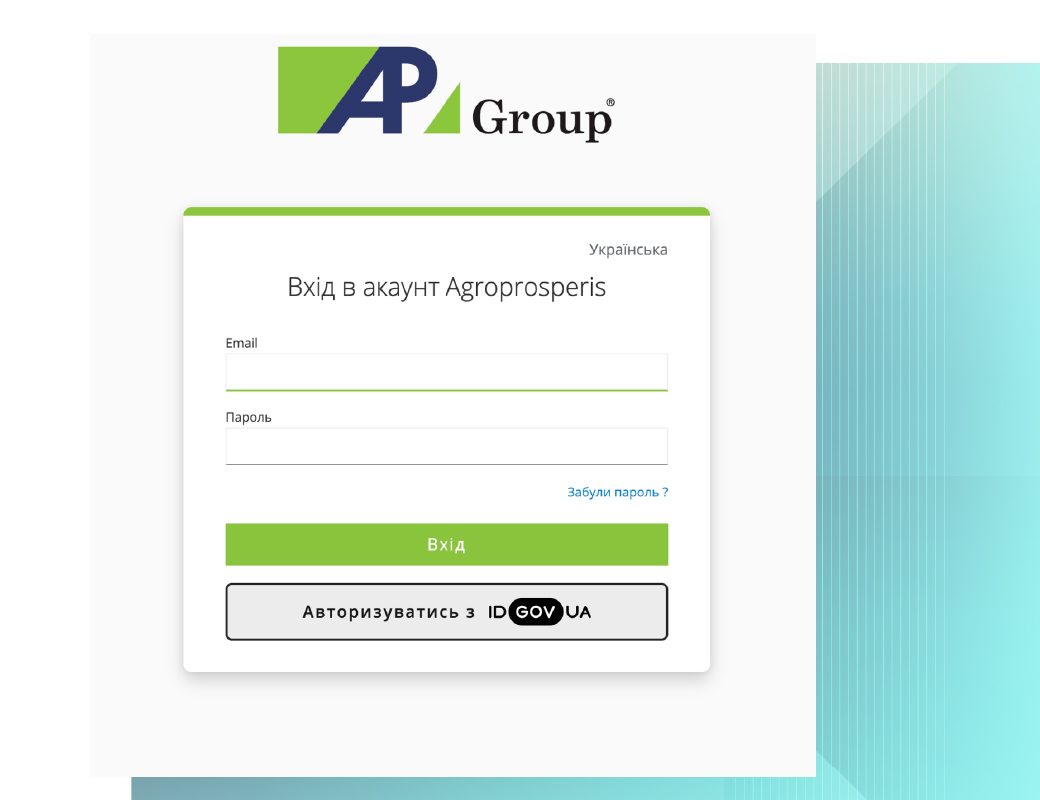
Login
Go to the service's website and click the “Sign In” button. After clicking, a login window will open.
Available options: sign in with your corporate email (email + password) or sign in via the Diya app.
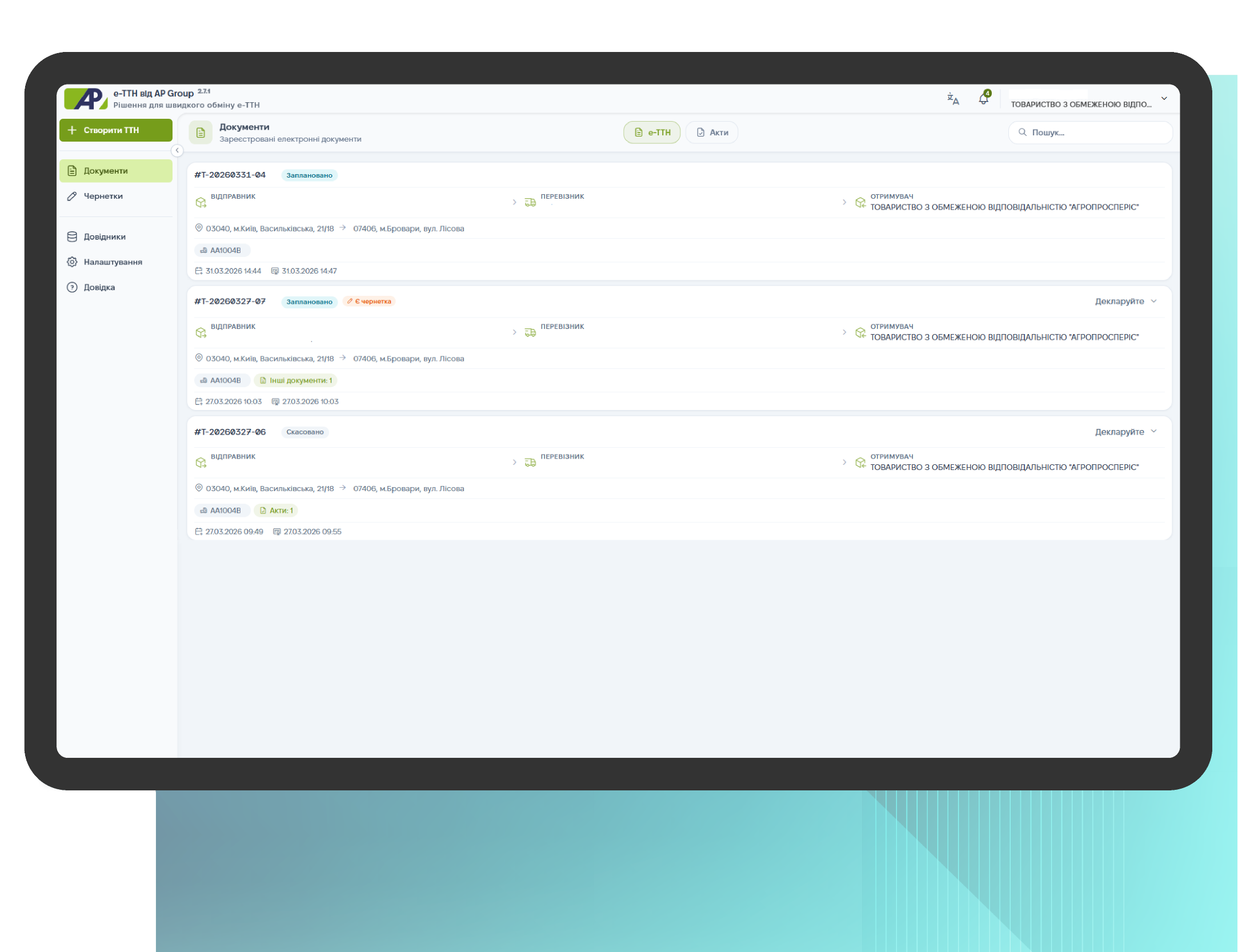
Dashboard: Overview of Sections
After logging in, a dashboard opens with three main sections:
- Create Waybill — create a document for cargo transportation;
- Documents — view created waybills and reports;
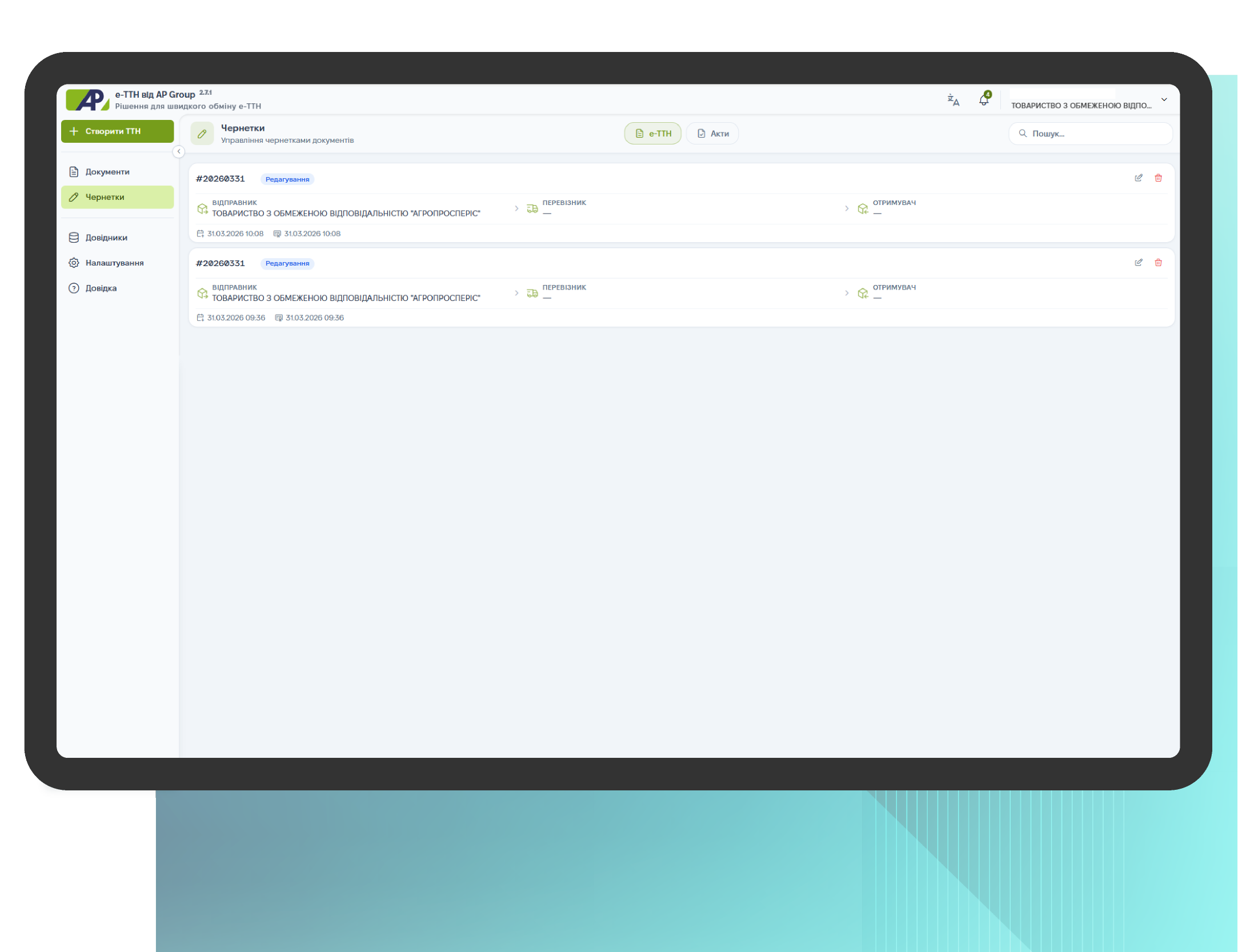
- Drafts — documents that have been created but not yet fully completed.
Waybill statuses:
Scheduled – the waybill has been created, but shipment has not yet begun
Delivered – the shipment has been successfully delivered to the recipient
On the road – the shipment has already been sent and is currently in transit
Canceled – the waybill has been canceled; the shipment will not take place
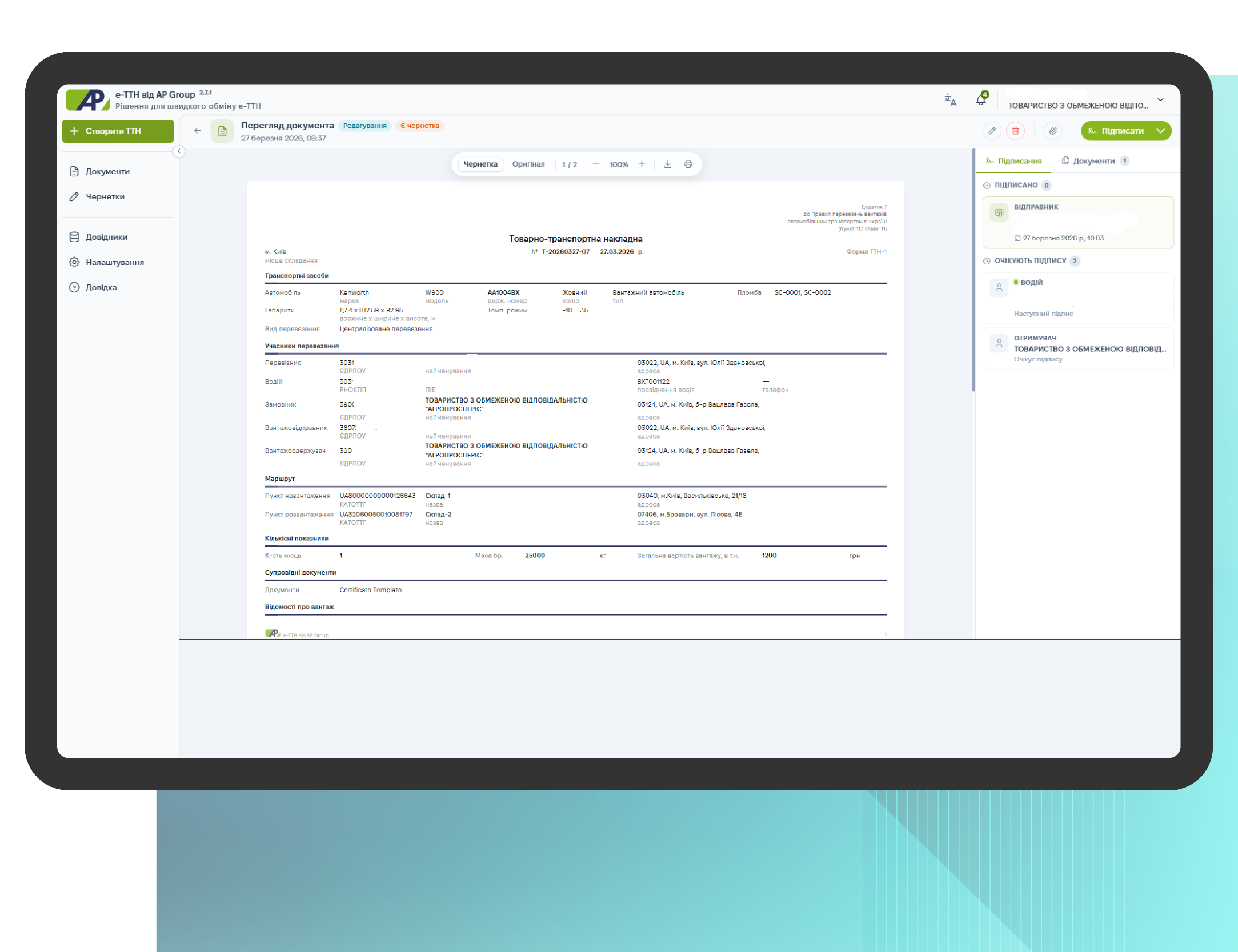
Waybill Overview
This section includes:
- full document view — view the waybill in full format to verify the details, route, and cargo information.
- edit document — make changes within the scope of your access rights so that the approval process can be completed in a single workflow.
- signing the waybill — initiating the electronic signature process at the appropriate stage of the workflow, with the status and signatories recorded.
Waybill editing
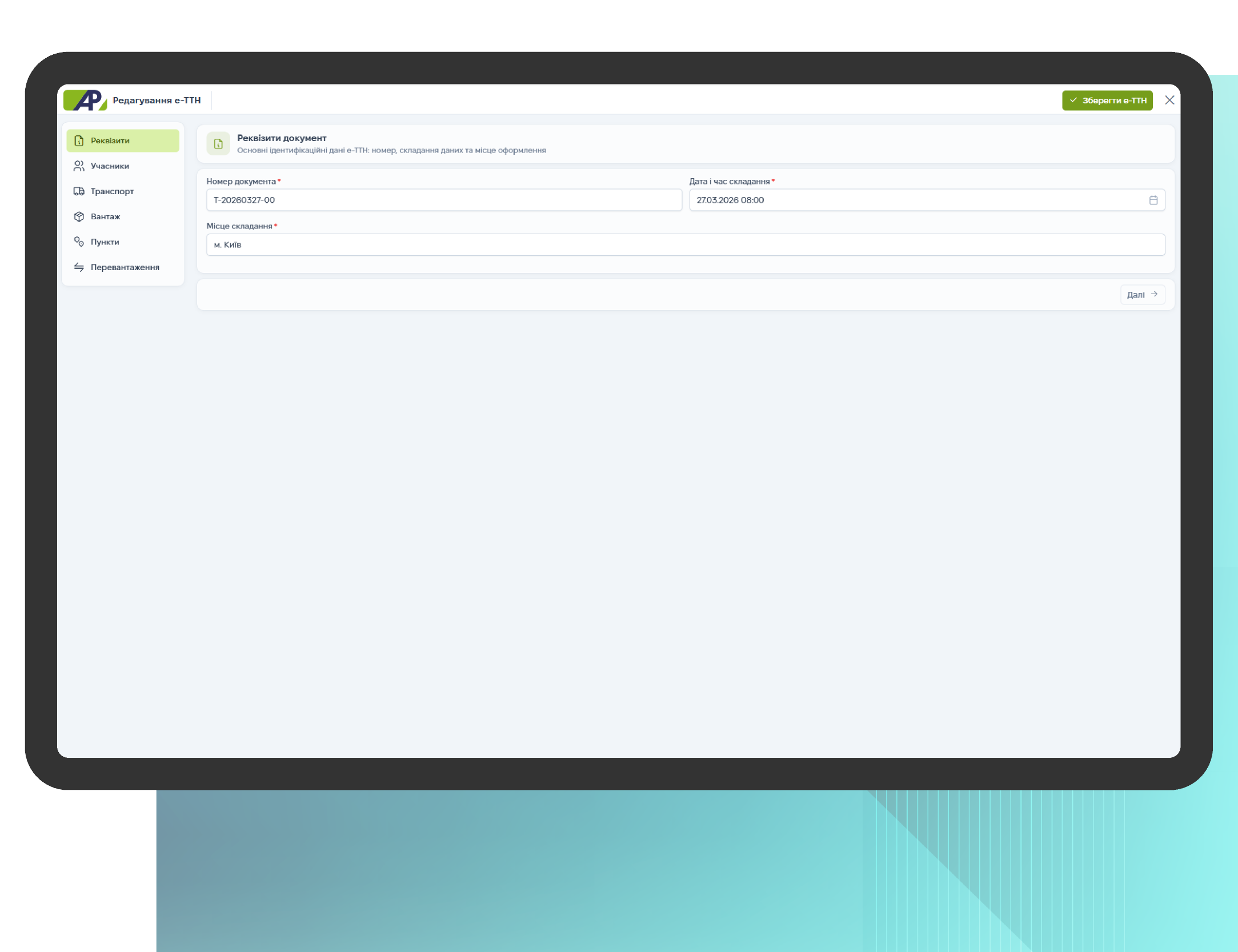
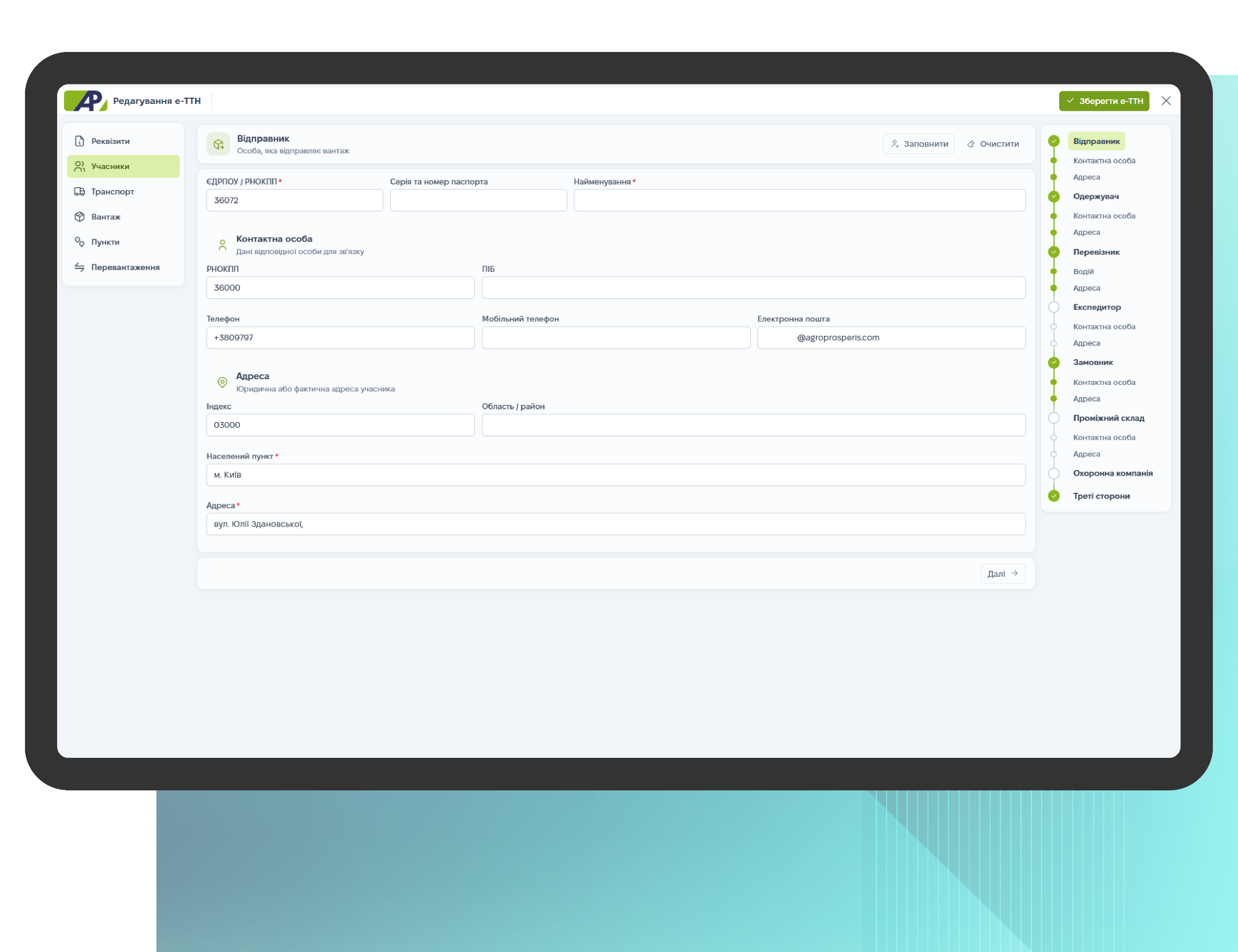
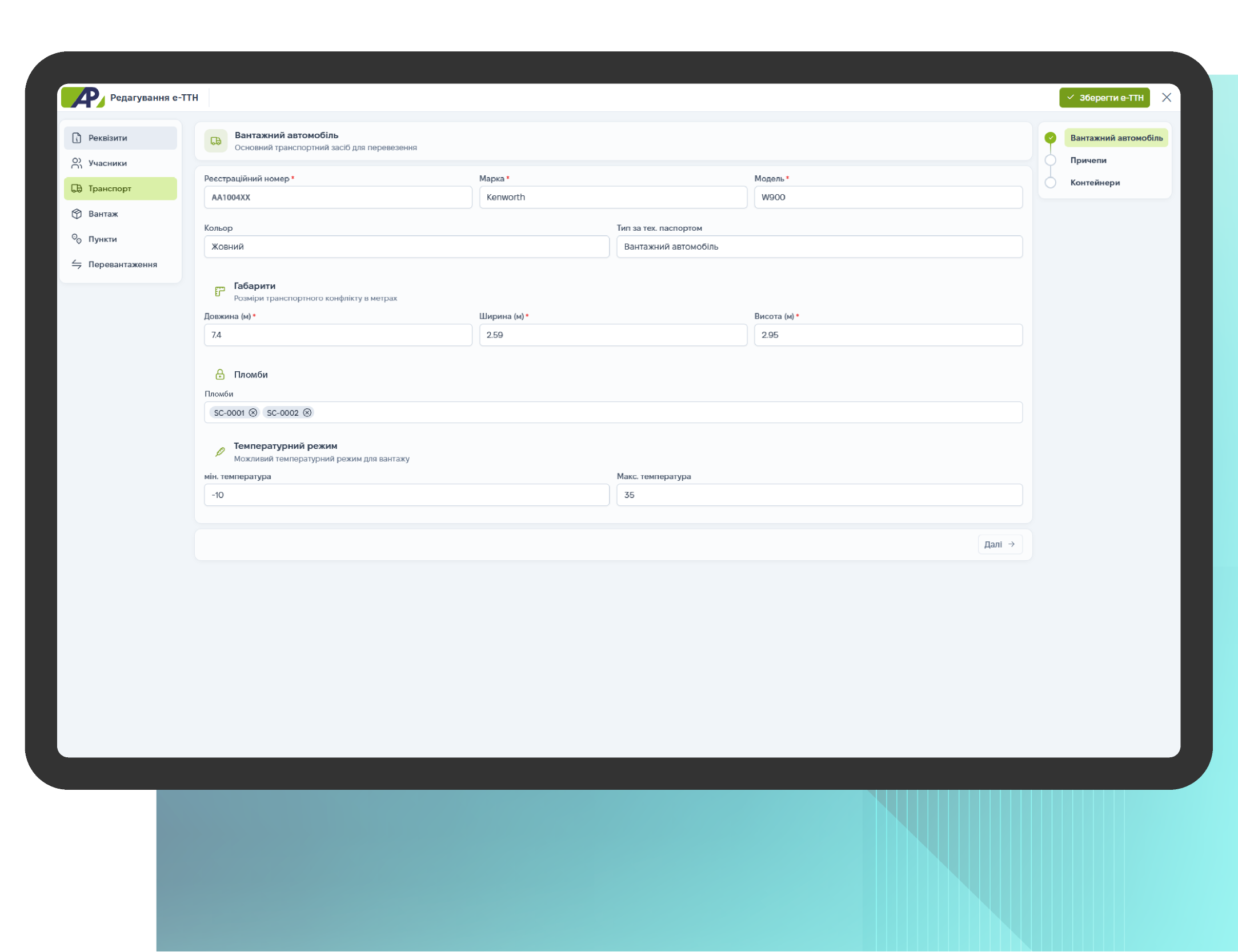
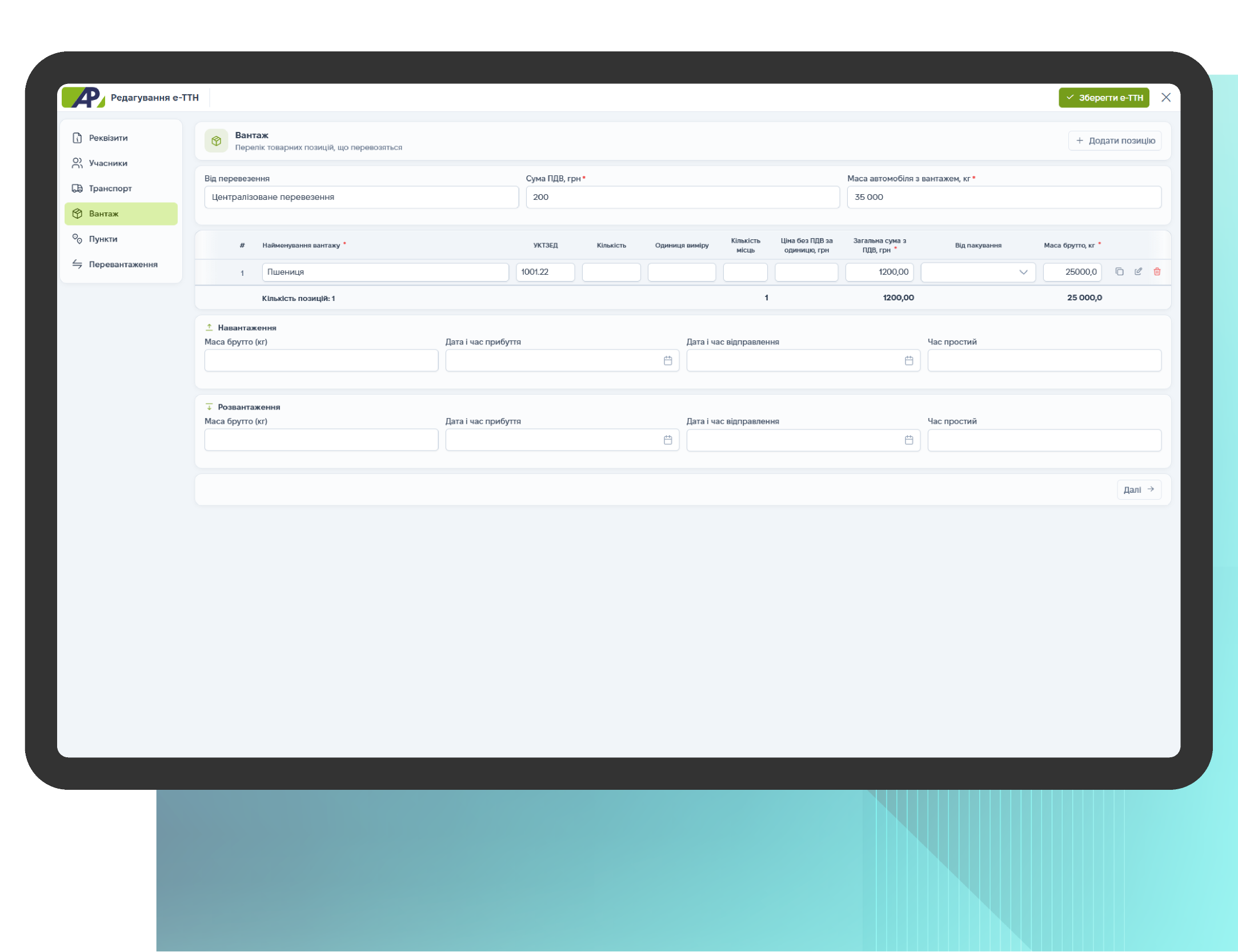
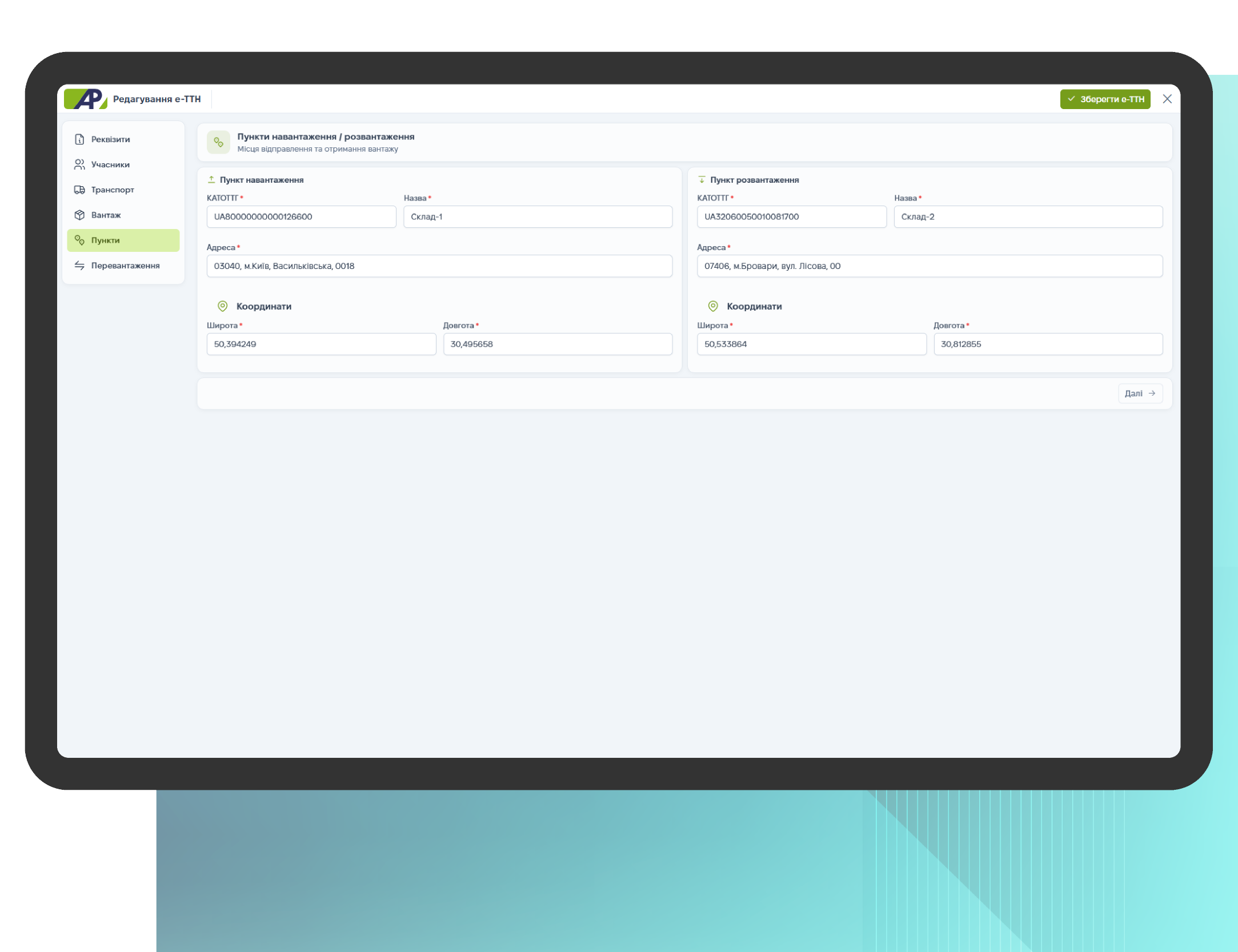
The ability to quickly update a document within the scope of your access rights: details, cargo, transport, participants, and loading/unloading points. All changes are recorded in a single document so that the waybill remains up to date for all parties involved in the process.
This section includes:
- Details — basic document information and key fields of the waybill;
- Parties — shipper, carrier, driver, consignee, and their details;
- Transport — vehicle and parameters required for transportation;
- Cargo and locations — information about the cargo and loading/unloading points.
Signing the Waybill
This process begins after you click the “Sign” button. Next, select a method: signing via EDO or signing via the Diya app.
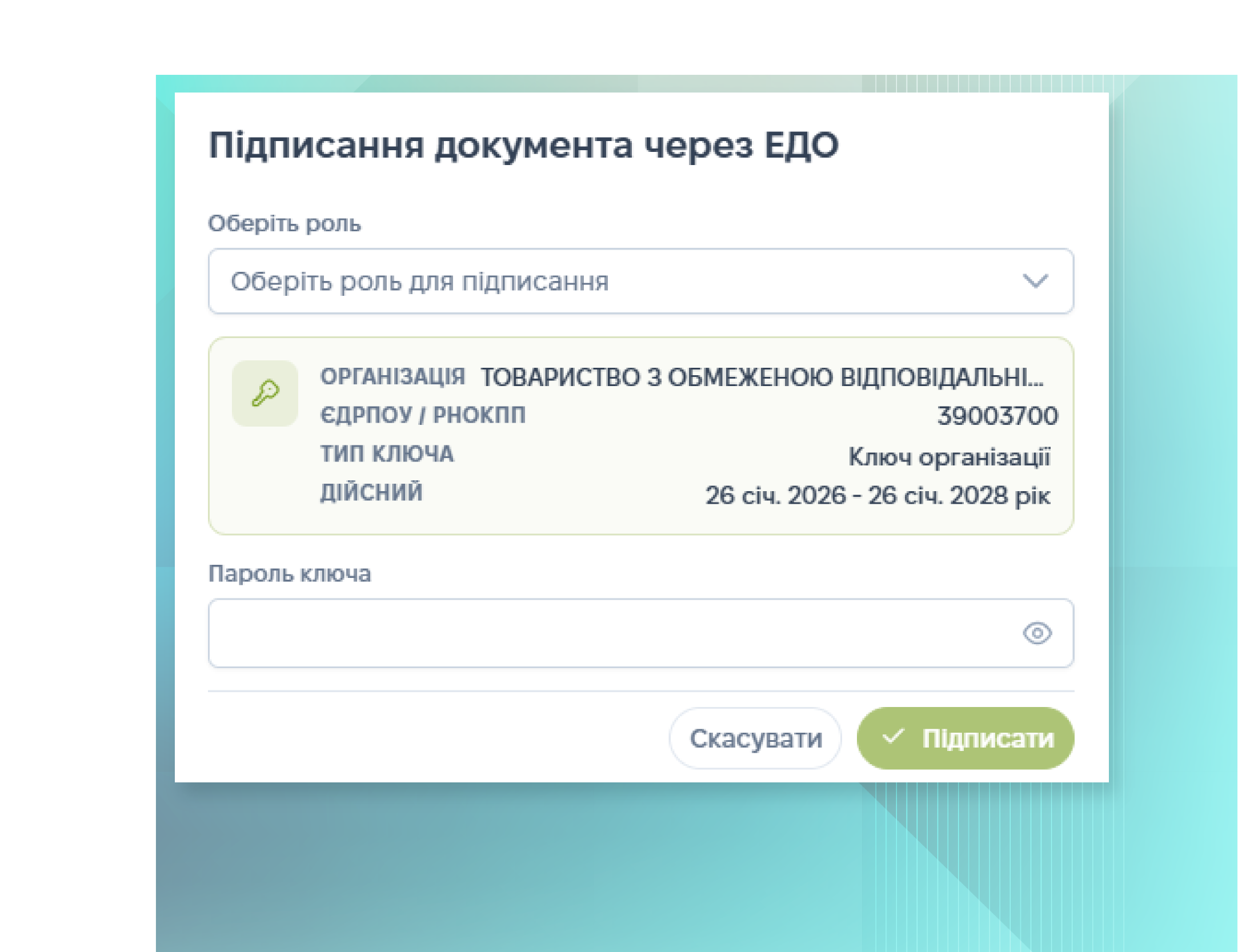
Signing via EDI (Agroprosperis internal keys)
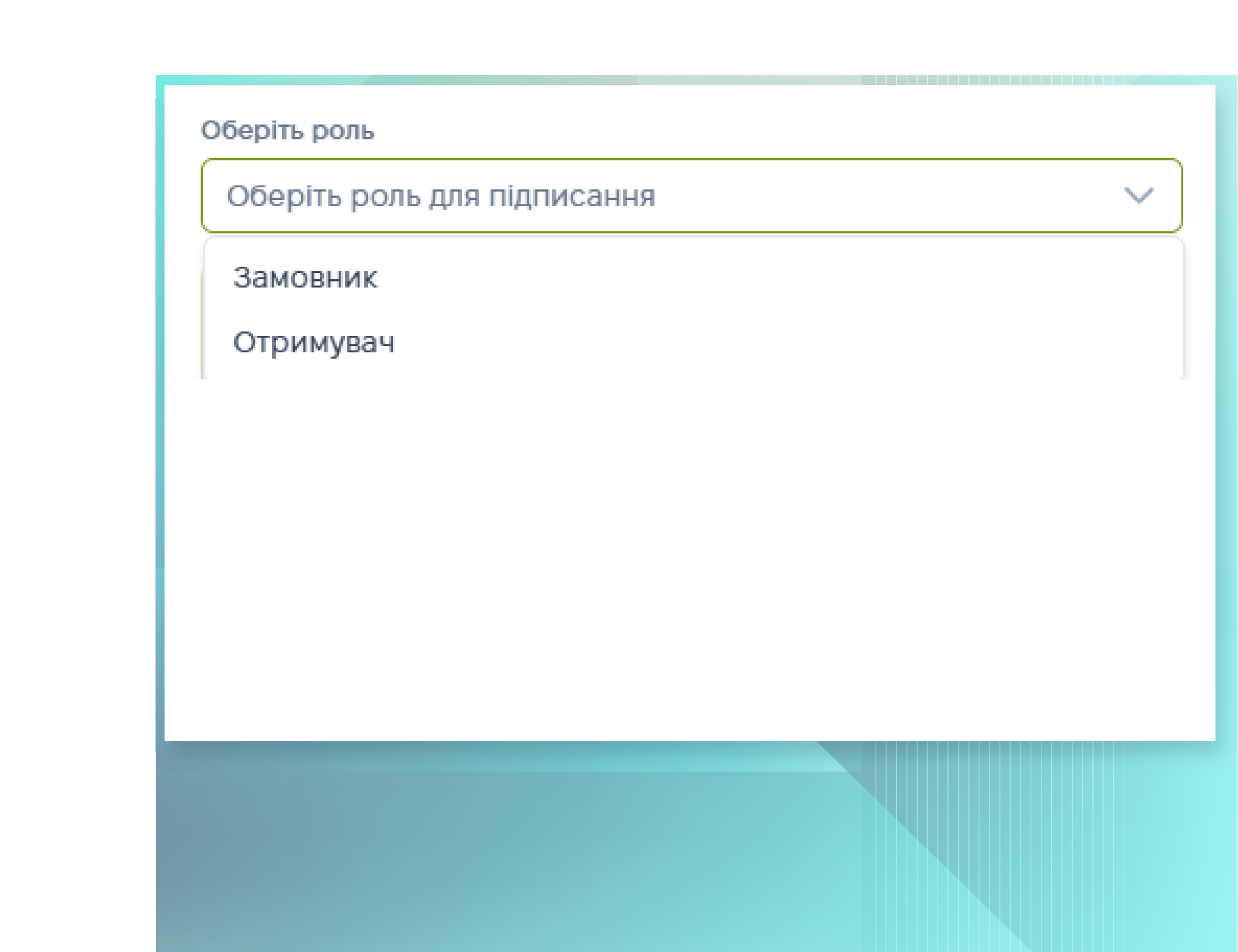
1. In the signing window, select the signer’s role (e.g., Sender or Recipient)
2. Verify that the organization’s key is selected (the data will be populated automatically).
3. Enter the key password and click “Sign.”
Signing via the Diya app
1. In the “Sign” button menu, select “Sign via Diia.”
2. Confirm the signature by following the instructions provided by the Diia service.
3. Once confirmed, the document's status will be updated in the system.
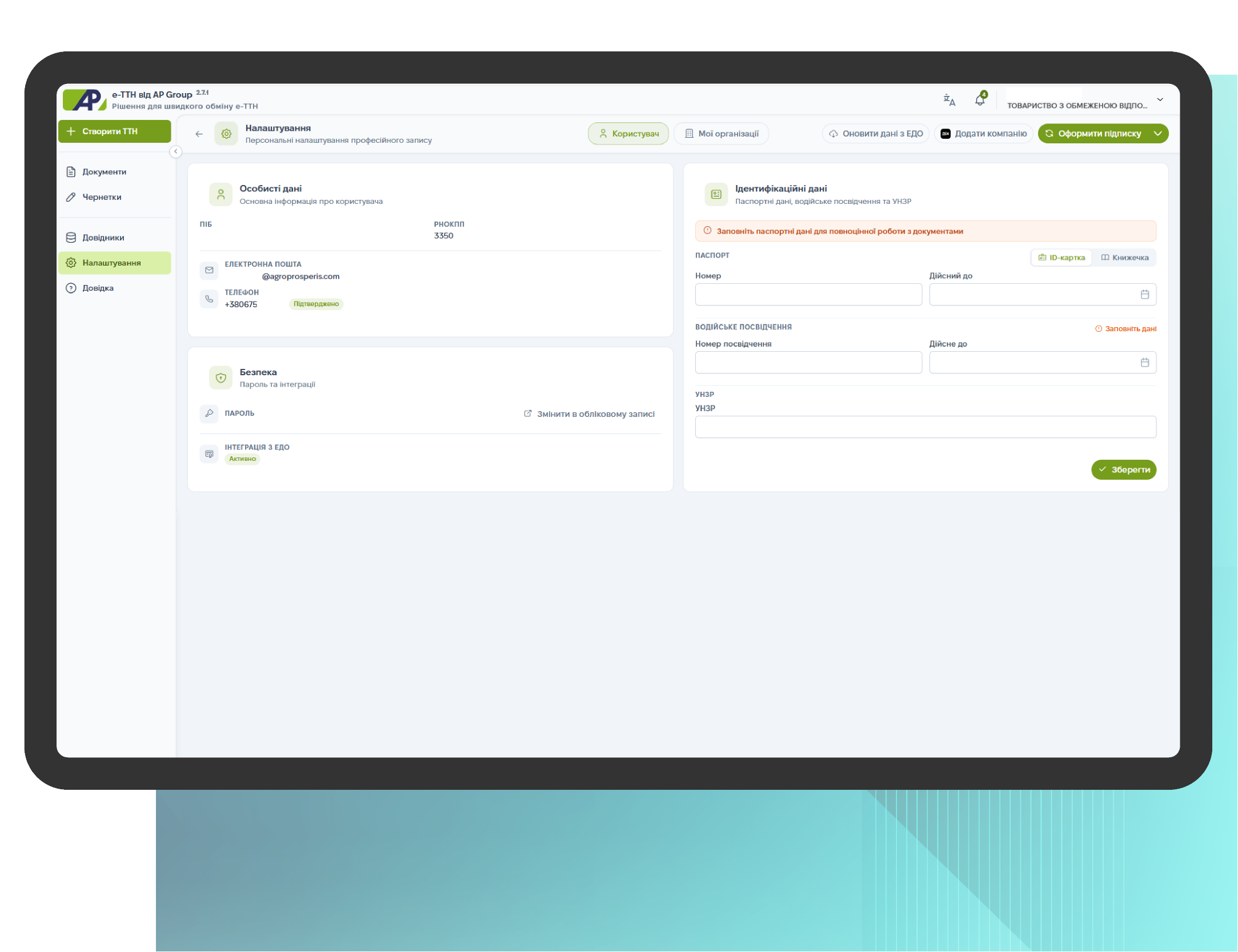
Profile Settings
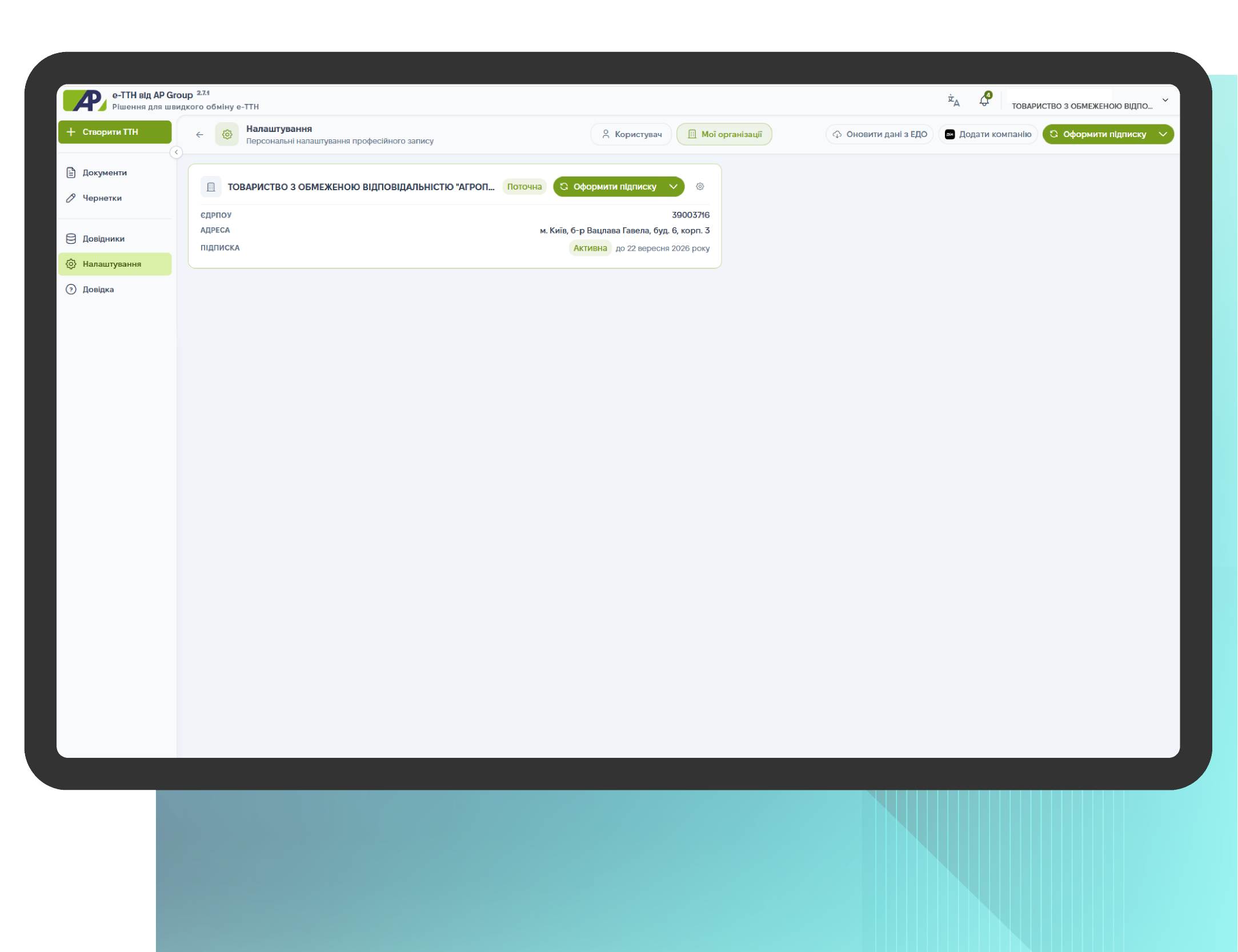
The user profile contains key settings for work: personal information, accessible organizations, company connections, and updates from the Electronic Document Management System (EDMS). This is a basic section that helps you quickly verify access permissions and data accuracy before creating, editing, and signing a waybill.
This section includes:
- View available organizations — select the company you work with in the service;
- Add a company via Action — connect an organization if necessary;
- Update data from the Electronic Document Management System (EDMS) — synchronize and update data;
- Subscribe — activate a subscription to create, edit, and send waybills and use the service’s features.
Instructions for drivers: How to sign an e-waybill
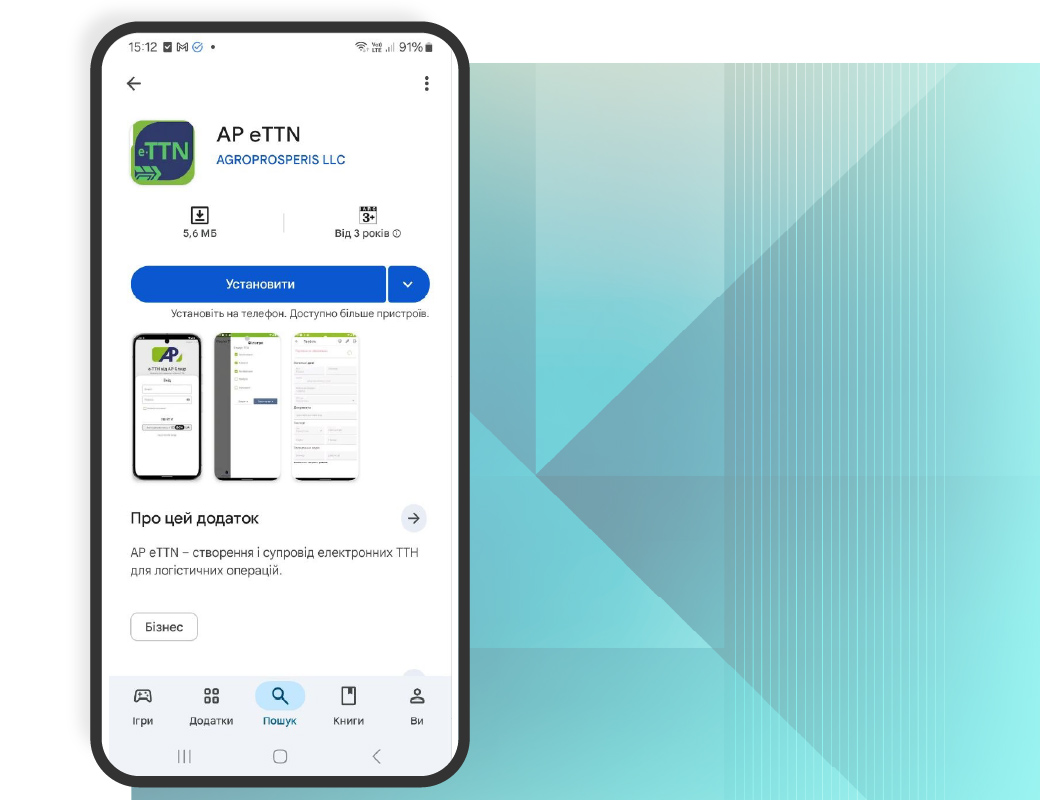
To use e-TTN, drivers need: a smartphone with the e-TTN app installed and an electronic signature key (ESK) / the ability to sign via Diya (depending on the company’s policy).
Login
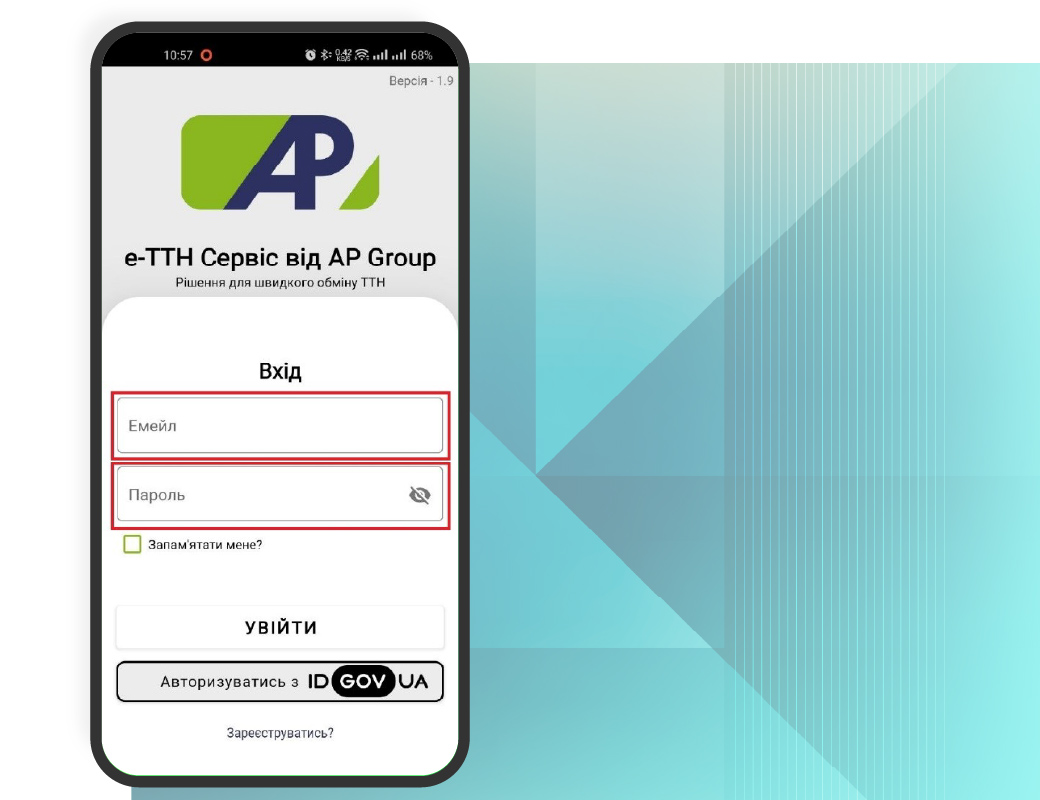
After opening the app, choose a convenient login method:
Option 1 — Agroprosperis corporate account: enter your email (corporate email), enter your password (from your corporate email), and click “LOG IN.”
Option 2 — “Dіya.Signing”: click “Authorize with ID GOV UA,” then follow the system prompts
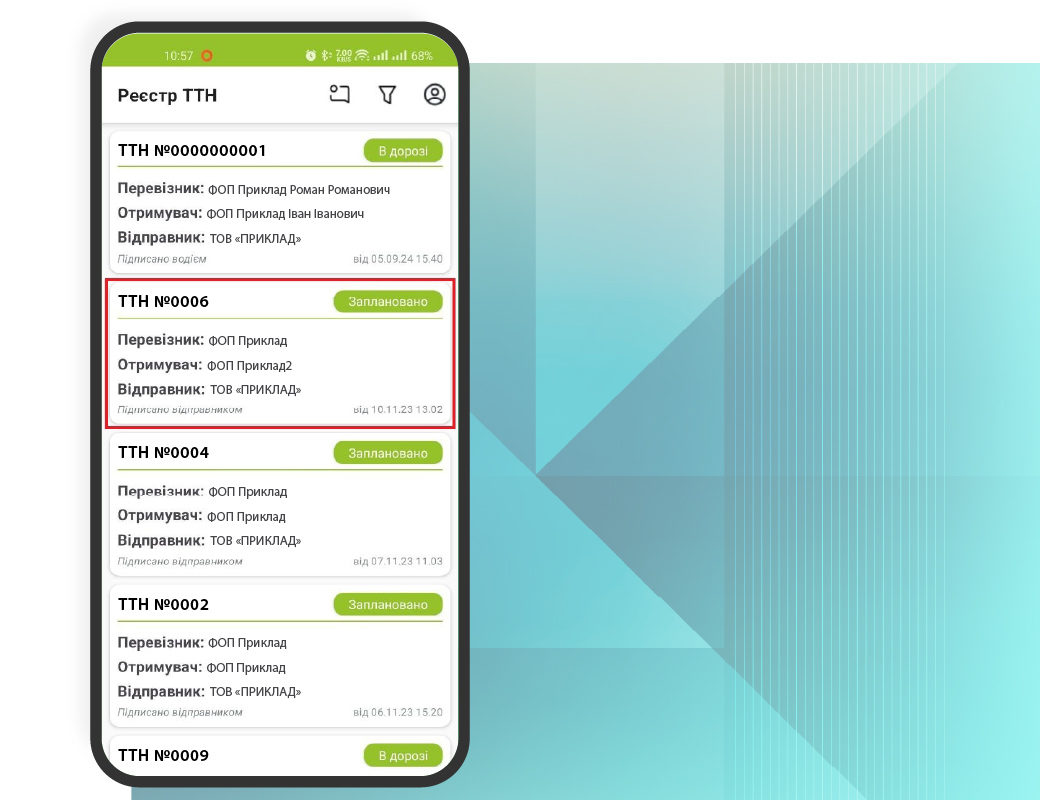
View the list of waybills
After successfully logging in, two tabs are available in the app:
Freight Waybill Register — a list of all freight waybills
Freight Waybill Documents — a list of created documents
In the Freight Waybill Register, each document is displayed as a brief card containing key information and its status.
Working with TTN statuses
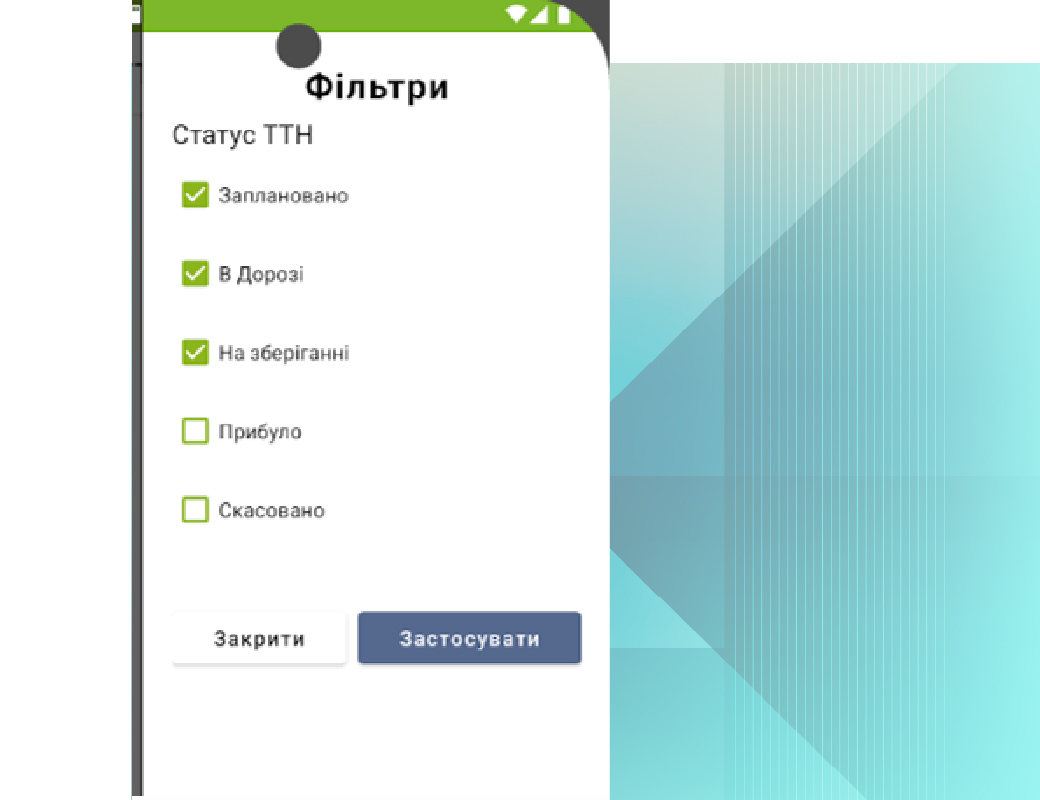
To work with the list, use the status filters.
Main statuses:
Scheduled — The waybill has been created and signed by the shipper; awaiting signature from the carrier or driver
In transit — The waybill has been signed by the driver/carrier; the cargo has been accepted for transport
In storage — Waybill for cargo unloaded at an intermediate warehouse (inspection report completed)
Arrived — Waybill signed by the consignee; cargo has arrived at the unloading point
Cancelled — Waybill cancelled (possibly before loading, depending on the process)
View the Waybill in PDF
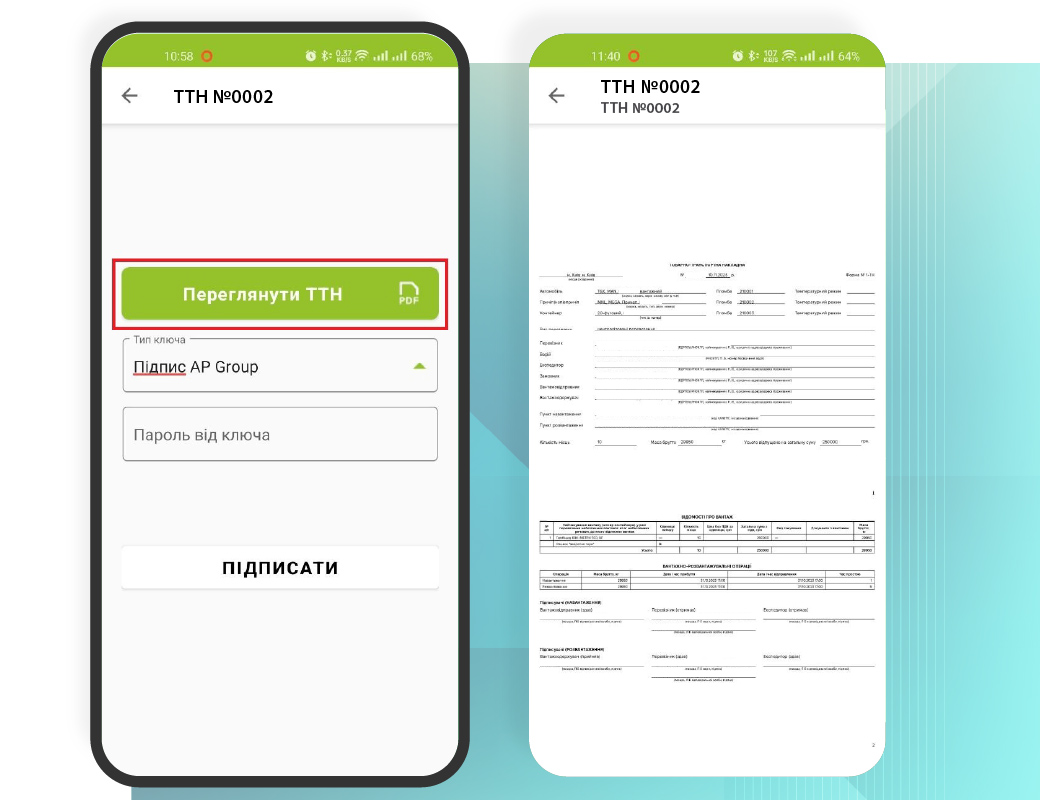
Before signing, the driver can view the waybill as a PDF document:
- Open the desired waybill from the list
- Click “View Waybill (PDF)”
- Review the document and return to the signing screen
Signing a Waybill (Electronic Signature/Diya)
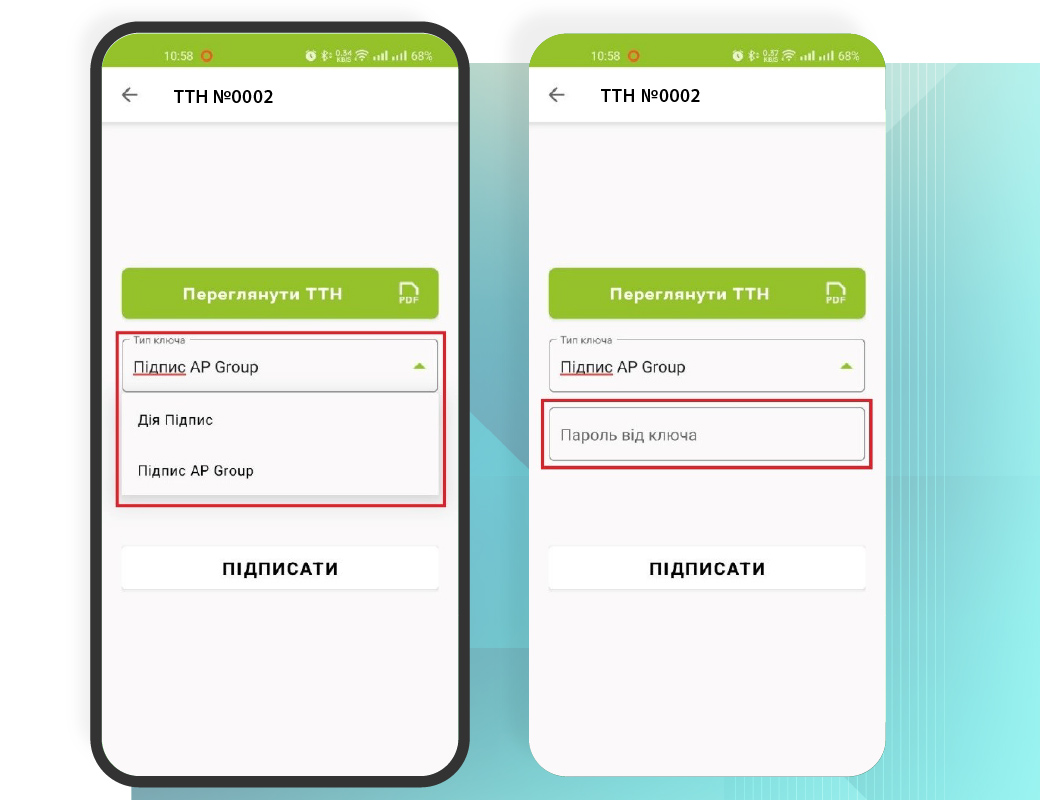
To sign:
- Open the TTN record you want to sign
- Select the signing method
- Enter the required information and click “SIGN”
Signing with an AP Group key (internal key / “Hryada”): select the “AP Group Signature” type, enter the key password, and click “Sign.”
Signing via Diya: select Diya.Signature / KEP, then follow the steps provided by the system
For consultation regarding the use of e-TTN by AP Group
contact us or leave your contact details